
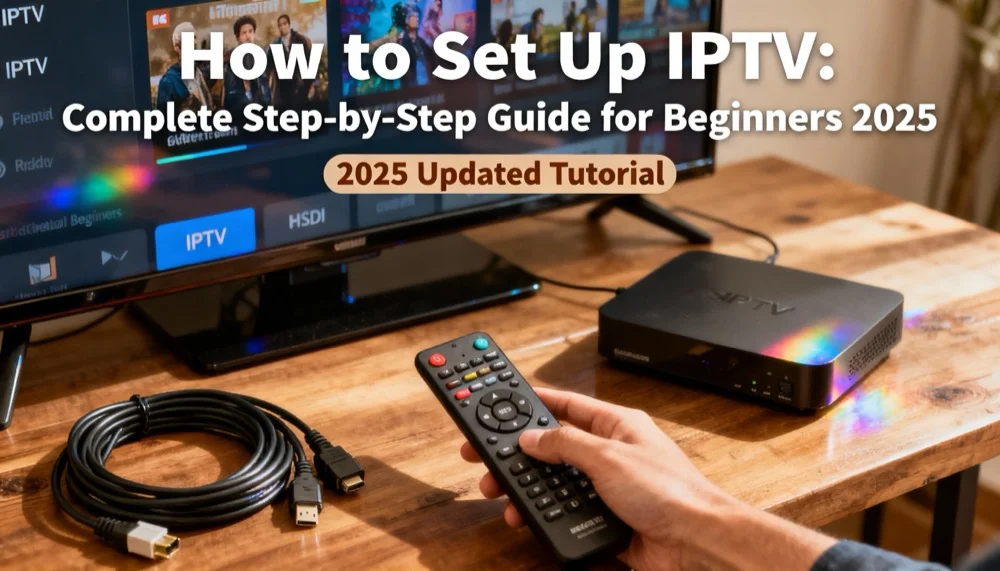
How to Set Up IPTV: Complete Step-by-Step Guide for Beginners 2026
How to Set Up IPTV: The EASIEST Guide Ever! 🎯
“Setting up IPTV sounds complicated…” 😰
I hear you!
But here’s the truth: It’s actually SUPER EASY! 🎉
In fact, if you can download an app and type in a code, you’re basically done! No tech skills needed! 💪
In this guide, I’ll show you:
- How to set up IPTV on ANY device 📱
- Step-by-step instructions (with pictures!) 📸
- Common mistakes to avoid ⚠️
- Pro tips for the best experience ✨
Ready? Let’s get you streaming in the next 10 minutes! ⏱️
What You’ll Need Before We Start 📋
Before we dive in, make sure you have:
1. An IPTV Subscription 📺
You need:
- IPTV provider subscription (like Snel IPTV!)
- Your login credentials
- The M3U URL or Xtream Codes info
Don’t have one yet? Get Snel IPTV here - 7-day money-back guarantee! ✅
2. A Compatible Device 📱
IPTV works on:
- Smart TVs (Samsung, LG, Sony, etc.)
- Android devices (phones, tablets, boxes)
- iOS devices (iPhone, iPad)
- Fire TV Stick / Fire TV
- Apple TV
- MAG boxes
- Windows/Mac computers
- Gaming consoles
Pretty much anything that connects to internet! 🌐
3. Stable Internet Connection 🚀
Minimum speeds:
- SD quality: 3-5 Mbps
- HD quality: 10-15 Mbps
- 4K quality: 25+ Mbps
Test your speed: Go to speedtest.net 📊
4. An IPTV Player App 🎬
Popular options:
- TiviMate (Best for Android!)
- IPTV Smarters Pro
- GSE Smart IPTV
- Perfect Player
- VLC Media Player
Don’t worry - I’ll show you how to get these! 👇
Method 1: Set Up IPTV on Android TV / Android Box 📺
This is the MOST POPULAR method! Let’s do it:
Step 1: Download TiviMate
- Open Google Play Store on your Android device
- Search for “TiviMate IPTV Player”
- Click Install
- Wait for it to download ⏳
TiviMate is FREE and works amazingly! ✨
Step 2: Open TiviMate
- Open TiviMate app
- Click “Add Playlist”
- You’ll see two options:
- M3U URL
- Xtream Codes API
Step 3: Enter Your IPTV Details
If you have M3U URL:
- Select “M3U URL”
- Enter playlist name (e.g., “Snel IPTV”)
- Paste your M3U URL
- Click “Next”
If you have Xtream Codes:
- Select “Xtream Codes API”
- Enter:
- Server URL (from your provider)
- Username (from your provider)
- Password (from your provider)
- Click “Connect”
Step 4: Configure EPG (TV Guide) 📖
- Select EPG source
- Choose “Load EPG from playlist” (automatic!)
- Click “Next”
Step 5: Start Watching! 🎉
That’s it! Your channels should now load!
Browse through categories:
- Live TV
- Movies
- Series
- Sports
- Kids
Enjoy! 🍿
Method 2: Set Up IPTV on Fire TV Stick 🔥
Fire Stick is SUPER popular! Here’s how:
Step 1: Enable Installation from Unknown Sources
- Go to Settings (gear icon)
- Select “My Fire TV”
- Click “Developer Options”
- Enable “Apps from Unknown Sources”
- Click “Turn On”
This lets you install IPTV apps! ✅
Step 2: Install Downloader App
- Press Home button
- Select Search (magnifying glass)
- Type “Downloader”
- Install Downloader by AFTVnews
Step 3: Download IPTV Smarters Pro
- Open Downloader app
- Enter this URL:
http://iptvsmarters.com - Download the APK file
- Click Install
- Click Done
Step 4: Open IPTV Smarters Pro
- Open the app
- Select “Login with Xtream Codes API”
- Enter your details:
- Username
- Password
- Server URL
- Click “Add User”
Step 5: Start Streaming! 📡
Done! All your channels are loaded!
Navigate with your Fire Stick remote:
- Up/Down to browse
- Select to play
- Back to exit
Easy peasy! 🎯
Method 3: Set Up IPTV on Smart TV (Samsung/LG) 📺
For Samsung Smart TV:
Option A: Using Smart IPTV App
- Open Samsung App Store
- Search “Smart IPTV”
- Install the app
- Open Smart IPTV
- Note the MAC address shown
- Go to siptv.eu/activation
- Upload your M3U playlist
- Restart Smart IPTV app
Option B: Screen Mirroring
- Set up IPTV on your phone (see below)
- Enable Screen Mirroring on TV
- Mirror phone screen to TV
- Play IPTV from phone
For LG Smart TV:
Option A: Using SS IPTV
- Open LG Content Store
- Search “SS IPTV”
- Install the app
- Open SS IPTV
- Go to Settings
- Click “Add” under Playlists
- Enter your M3U URL
- Save and enjoy!
Option B: Cast from Phone
- Set up IPTV on phone
- Use LG TV Plus app for casting
- Stream to your TV
Method 4: Set Up IPTV on iPhone/iPad (iOS) 📱
Step 1: Download GSE Smart IPTV
- Open App Store
- Search “GSE Smart IPTV”
- Download and install
- Open the app
Step 2: Add Your Playlist
- Click the ”+” button
- Select “M3U URL” or “Xtream Codes”
- Enter your details:
- Name: Snel IPTV
- URL/Credentials from provider
- Click “Add”
Step 3: Import EPG
- Go to Settings (gear icon)
- Select “EPG”
- Add EPG URL (from your provider)
- Click “Sync”
Step 4: Watch on iPhone/iPad! 📲
All set! Browse channels and start watching!
Pro Tip: Use AirPlay to stream to Apple TV! 📺
Method 5: Set Up IPTV on Windows/Mac Computer 💻
Step 1: Download VLC Media Player
- Go to videolan.org
- Download VLC for your system
- Install VLC
VLC is FREE and plays everything! ✅
Step 2: Load Your IPTV Playlist
On Windows:
- Open VLC
- Click “Media” → “Open Network Stream”
- Paste your M3U URL
- Click “Play”
On Mac:
- Open VLC
- Click “File” → “Open Network”
- Paste your M3U URL
- Click “Open”
Step 3: Save for Easy Access
- Click “View” → “Playlist”
- Right-click playlist
- Select “Save”
- Name it (e.g., “Snel IPTV”)
Now you can open it anytime! 🎉
Method 6: Set Up IPTV on MAG Box 📦
Step 1: Connect MAG Box
- Connect MAG box to TV (HDMI cable)
- Connect to internet (Ethernet or Wi-Fi)
- Turn on TV and MAG box
Step 2: Configure Portal
- Go to Settings (gear icon)
- Select “System Settings”
- Enter password (default: 0000)
- Select “Servers”
Step 3: Enter Portal URL
- Select “Portals”
- Click “Portal 1”
- Enter:
- Name: Snel IPTV
- Portal URL: (from your provider)
- Click “Save”
Step 4: Reboot and Watch!
- Restart MAG box
- Wait for channels to load
- Start watching! 📺
Common Setup Issues & Quick Fixes 🔧
Problem 1: “Playlist Not Loading” 😤
Causes:
- Wrong URL/credentials
- Internet connection issues
- Provider server down
Solutions:
- Double-check your login details
- Test internet connection
- Try re-entering the URL
- Contact your IPTV provider
- Clear app cache
Problem 2: “Channels Not Playing” 📺
Causes:
- Slow internet
- Wrong player settings
- App needs update
Solutions:
- Test internet speed (speedtest.net)
- Enable hardware acceleration in app
- Update your IPTV app
- Try different player app
- Restart your device
Problem 3: “No EPG / TV Guide” 📖
Causes:
- EPG not configured
- Wrong EPG URL
- EPG needs sync
Solutions:
- Go to app settings
- Add EPG URL (from provider)
- Manually sync EPG
- Wait 5-10 minutes for update
- Restart app
Problem 4: “Buffering / Freezing” ⏸️
Causes:
- Internet too slow
- Wi-Fi interference
- VPN issues
Solutions:
- Use Ethernet cable (not Wi-Fi)
- Close other apps/devices
- Disable VPN temporarily
- Lower video quality
- Contact ISP if internet is slow
Problem 5: “App Crashes” 💥
Causes:
- Outdated app
- Device low on memory
- Corrupted cache
Solutions:
- Update the app
- Clear app cache
- Restart device
- Reinstall app
- Try different IPTV player
Pro Tips for Best IPTV Experience 💡
1. Use Ethernet Instead of Wi-Fi 🔌
Why?
- More stable connection
- Faster speeds
- Less buffering
If you MUST use Wi-Fi:
- Use 5GHz band
- Stay close to router
- Avoid walls/obstacles
2. Get a Good IPTV Player 🎬
Best apps by device:
- Android: TiviMate (BEST!)
- iOS: GSE Smart IPTV
- Fire Stick: IPTV Smarters Pro
- Computer: VLC Player
- Smart TV: SS IPTV
3. Organize Your Channels 📂
In your app:
- Create favorites list
- Hide channels you don’t watch
- Group by categories
- Use parental controls for kids
4. Enable EPG (Electronic Program Guide) 📖
Why EPG is awesome:
- See what’s playing now
- See upcoming shows
- Schedule recordings
- Never miss your favorites!
5. Adjust Buffer Settings ⚙️
In app settings:
- Set buffer to 5-10 seconds
- Helps prevent freezing
- Smoother playback
6. Keep Apps Updated 🔄
Why update matters:
- Bug fixes
- Better performance
- New features
- Security patches
Check for updates weekly!
7. Use VPN for Privacy 🔒
Good VPNs for IPTV:
- ExpressVPN
- NordVPN
- CyberGhost
- Surfshark
Benefits:
- Better privacy
- Bypass geo-restrictions
- Secure streaming
Device-Specific Setup Comparison 📊
| Device | Difficulty | Best App | Setup Time | Quality |
|---|---|---|---|---|
| Android TV/Box | Easy | TiviMate | 5 mins | Excellent |
| Fire TV Stick | Easy | IPTV Smarters | 7 mins | Excellent |
| Smart TV | Medium | SS IPTV | 10 mins | Good |
| iPhone/iPad | Easy | GSE IPTV | 5 mins | Excellent |
| Windows/Mac | Very Easy | VLC | 3 mins | Excellent |
| MAG Box | Medium | Built-in | 8 mins | Excellent |
| Apple TV | Easy | GSE IPTV | 5 mins | Excellent |
What App Should You Use? 🤔
TiviMate (Android - HIGHLY RECOMMENDED!) ⭐
Pros:
- Beautiful interface
- Easy to use
- Excellent EPG support
- Multiple playlist support
- Catch-up TV feature
Cons:
- Android only
- Premium version costs money (but worth it!)
Best for: Android TV, Android boxes
IPTV Smarters Pro 📺
Pros:
- Works on multiple platforms
- Free to use
- Support for Xtream Codes
- Built-in player
Cons:
- Interface less polished than TiviMate
- Can be buggy sometimes
Best for: Fire Stick, Android, iOS
GSE Smart IPTV 📱
Pros:
- Great for iOS devices
- Clean interface
- EPG support
- Free version available
Cons:
- iOS focused
- Some features behind paywall
Best for: iPhone, iPad, Apple TV
VLC Media Player 💻
Pros:
- 100% FREE
- Works on everything
- Plays any format
- Very stable
Cons:
- Basic interface
- No EPG
- Manual playlist management
Best for: Windows, Mac, Linux computers
Security & Privacy Tips 🔒
1. Use Strong Passwords 🔑
For your IPTV account:
- Use unique password
- Mix letters, numbers, symbols
- Change every 3-6 months
- Don’t share with others
2. Enable Two-Factor Authentication 📲
If your provider offers it:
- Adds extra security layer
- Protects your account
- Prevents unauthorized access
3. Be Careful with Free IPTV 🚨
Why avoid free IPTV:
- Often illegal content
- Poor quality/reliability
- Security risks
- Can contain malware
Stick with legit providers like Snel IPTV! ✅
4. Keep Devices Updated 🔄
Update regularly:
- Operating system
- IPTV apps
- Security patches
- Router firmware
5. Use Reputable IPTV Providers 🏆
What makes a provider trustworthy:
- Legal content licenses
- Secure payment methods
- Active customer support
- Money-back guarantee
- Positive reviews
Snel IPTV checks all these boxes! ✨
Snel IPTV: Why We Make Setup Easy 🎯
At Snel IPTV, we get it - you want to watch TV, not become a tech expert! 😅
That’s why we provide:
Instant Setup Support 🚀
We help with:
- Installation on any device
- Configuration assistance
- Troubleshooting problems
- Optimization tips
24/7 via WhatsApp, Live Chat, or Email! 💬
Pre-Configured Apps 📱
We offer:
- Custom APK files
- Pre-loaded credentials
- Optimized settings
- One-click setup
Literally plug and play! 🎉
Step-by-Step Video Guides 🎥
We created:
- Device-specific tutorials
- Common troubleshooting videos
- Tips and tricks guides
- Regular updates
Visual learner? We got you! 👀
Compatible with Everything 🔧
Snel IPTV works on:
- All Android devices ✅
- All iOS devices ✅
- Fire TV / Fire Stick ✅
- Smart TVs (all brands) ✅
- MAG boxes ✅
- Computers ✅
- Gaming consoles ✅
ONE subscription = ALL your devices! 💪
Ready to Start Streaming? Let’s Go! 🚀
Here’s the truth: Setting up IPTV is WAY easier than people think! 😊
Just:
- Pick your device 📱
- Download an app 🎬
- Enter your details 🔑
- Start watching! 📺
The whole process? 5-10 minutes MAX! ⏱️
And with Snel IPTV, you get:
- ✅ 20,000+ HD/4K channels
- ✅ Works on ALL devices
- ✅ 24/7 setup support
- ✅ 7-day money-back guarantee
- ✅ NO technical skills needed!
🎉 Black Friday Special - 40% OFF!
Get Snel IPTV Now - Streaming in 10 minutes guaranteed!
What are you waiting for? Your favorite shows are calling! 📺✨
Need help with setup? Our team is standing by 24/7! Contact us via WhatsApp, live chat, or email. We’ll have you streaming in minutes - that’s a promise!
Last updated: October 17, 2026
Ready to Experience Premium IPTV?
Join over 50,000 satisfied customers streaming 32,670+ channels in stunning 4K quality
Start Your Free Trial Now